Wiki Devices
Several devices: stations
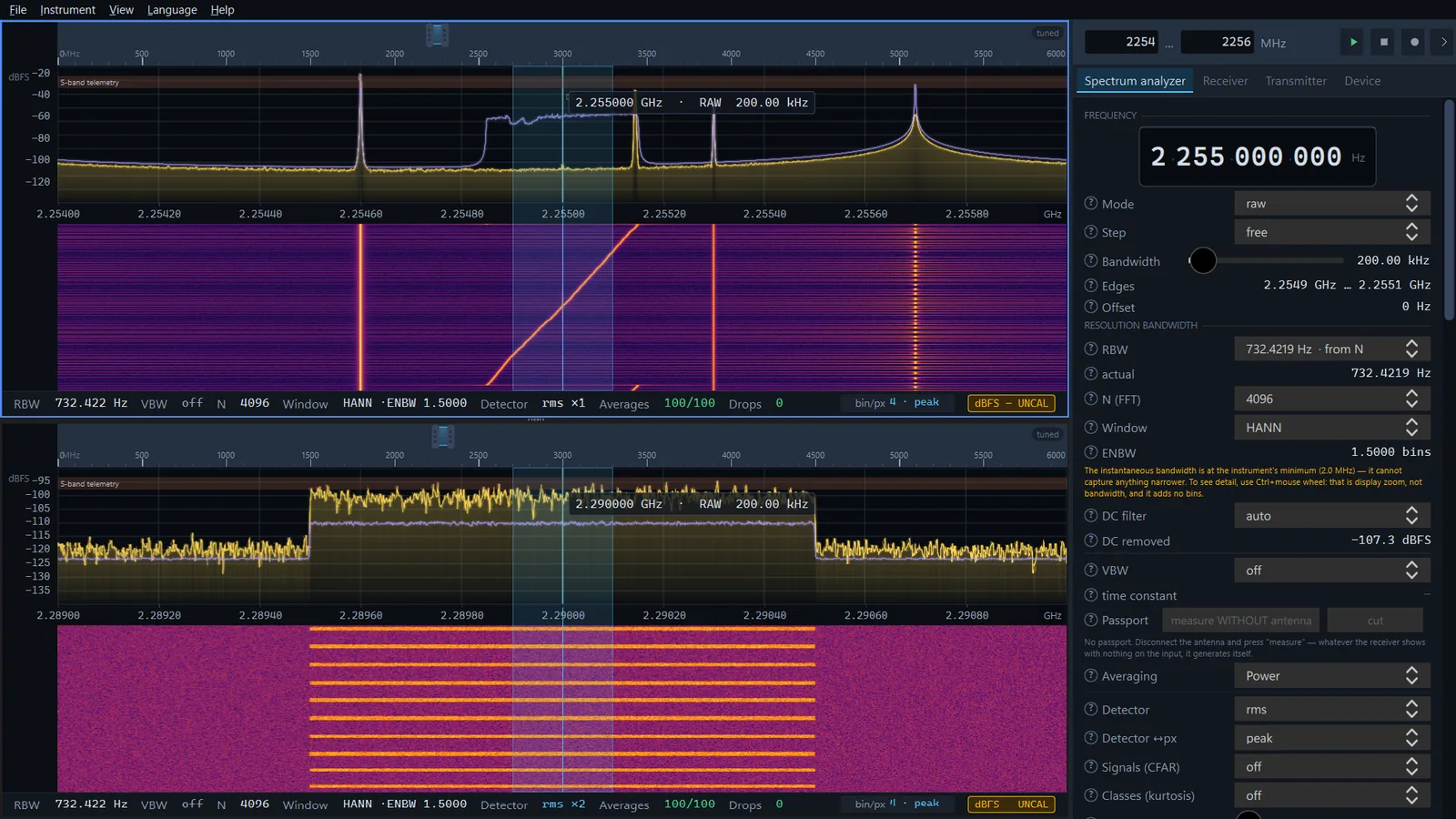
A station is one device, IQ recording or demo signal with its own spectrum, waterfall and trust bar. One window can hold several stations — stacked in a column, one above the other — and each receives on its own. There is one side panel for the whole window: it shows the active station, and the menus and keys act on that station too. This page covers adding and closing stations, what can be shared between them and where the ceiling on their number lies.
What a station is 0.9.58
Each station has its own overview ruler, spectrum, waterfall and the trust bar under them, plus everything behind the picture: the stream of samples, the traces, the VFO, the receiver, the recording, the loss counters. Settings of one station do not touch the others until you switch on something shared. The stations stand in a column on the left of the window; drag the divider between two stations to change their heights. The window title lists the sources joined by “+”, for example SDR Signal Analyzer — HackRF One + RTL-SDR.
- One device — one station. The same HackRF One, RTL-SDR dongle or tinySA cannot be opened a second time. A recording and the demo signal can be opened as many times as you like.
- With a single station the window looks the same as before 0.9.58 with one difference: the trust bar sits under the waterfall, as wide as the graph, instead of a line across the whole window under the side panel. While there is only one station, there is no active-station frame.
The active station
The active station is the one whose page the side panel shows. The menu items and keys act on it — Space, A, Home, L, W, Ctrl+Z, saving the sweep, the FPV frame snapshot — and the FPV-video window shows its picture when it is in the fpv-video mode. When there is more than one station, the active one has a frame around it.
- Click
- A click on a station's spectrum, waterfall or trust bar makes it active. A click on the spectrum also works as a normal click — it puts that station's VFO there; to switch without that, click the station's trust bar.
- View → Stations
- A submenu with an item for each station: the number and the name of the source, for example 2. RTL-SDR. The active one is ticked.
- Alt+1 … Alt+9
- Makes the station with that number active — from the first to the ninth.
Each station has its own side panel page. A tab opened with a click changes only on the active station, while Ctrl+1, Ctrl+2 and so on open the tab on all of them at once. Lines over the spectrum — Screenshot saved: … and others — appear over the active station's spectrum. The window screenshot (F9) and the window video (F10) take the whole window with all its stations.
Adding a station
Instrument → Add station… (Ctrl+N) opens the same Select a receiver window as at start-up: a device from the list, the Demo signal or an IQ recording (Continue without a device) — see Getting started. The new station goes to the bottom of the column and becomes active at once. If you close the picker, nothing changes.
File → Open recording… (Ctrl+O) adds a station too — with the recording you choose in the Open IQ recording dialog. The dialog starts in the folder of a recording opened at start-up, if there is one, otherwise in C:\sdrsa-rec if that folder exists. The same formats as at start-up are accepted: SigMF, WAV and raw files — see Demo signal and IQ files.
- The Add station window: This device is already open in station N (…). One device — one station.
- This device is already in the window as the station with that number, and the app says so before any attempt to open it. HackRF One devices are told apart by their serial number; a device whose serial number cannot be read counts as the same as any HackRF that is already open. RTL-SDR dongles are told apart by their number in the list, tinySA instruments by their COM port.
- The Could not open the source window with the first line Device busy with another program
- Another program holds the device — including another instance of SDR Signal Analyzer or SDR SA PRO. It is the same window as at start-up; see Troubleshooting. The station is not added, and the rest keeps working.
Closing a station
Instrument → Close station (Ctrl+W) closes the active station: its stream, audio and video stop, and the device is released — it can be opened again or handed to another program. Any station can be closed, the first one included, except the only one: with a single station the item is disabled, and it is the app itself that has to be closed. After closing, the first station in the column becomes active, and Station closed: … with the name of the closed one appears over its spectrum.
The station set between launches
The app remembers which stations are open and in what order. The set is written to the settings every time a station is added or closed, and once more on exit. The next start opens the same set — without the receiver picker:
- a HackRF One and an RTL-SDR at the centre frequency and sample rate where you left them; the gains are back at their defaults;
- the demo signal at its centre frequency;
- a tinySA on the same COM port, with a 2200–2300 MHz sweep, as after picking it in the window;
- a recording — the same file.
A device that is not on USB or is held by another program gives the Could not open the source window and is skipped, while the rest of the set opens. If nothing opened, or there is no set yet (the first start), the receiver picker appears as before. To begin with another source next time, add it as a station and close the old one — the saved set changes accordingly.
Command line
The app from Microsoft Store is started from the Start menu without command-line words, so in it stations are added and closed from the menu only. Command-line words work when the app is started from a command line — for example, the portable build. Each word is a station: hackrf (or hackrf:<serial number>), rtlsdr (or rtlsdr:1 for the second dongle), tinysa (or tinysa:COM7), sim for the demo signal (sim:2400 with its centre at 2400 MHz), and anything else is the path of a recording. For example, hackrf rtlsdr opens two stations side by side. The words take precedence over the saved set, and after exit the set becomes what they asked for. If the source of a word does not open, the app shows a window with the reason and closes.
Shared between stations
The Instrument menu holds four switches, each on its own. All are off at first; the state of each is remembered between launches.
- Shared frequency axis
- Zooming and panning the picture on one station is repeated on every station whose captured band covers that span; a station that cannot see the span stays as it is. Switching it on lines all stations up with the active one at once. It is only the picture, like Ctrl + wheel: the receivers are not retuned.
- Same centre on all
- Retuning one station within its instantaneous bandwidth — with the range fields, the ruler, the wheel or the Zoom to selection item — sets the same centre on the others; each keeps its own bandwidth. A device that cannot tune to that frequency refuses by itself, in the same words as when it is tuned by hand. A sweep and the sweep span of a tinySA are not carried to the other stations.
- Shared bands
- An edit of the band list or of the stars on one station goes to all of them. It travels through the profile file: the station writes its list to the profile and the others read it back. Switching it on gives every station the active one's list at once.
- Audio from the active station only
- The demodulator and the audio run only on the active station; the others stay silent until one of them is made active. Without this switch every station with its receiver on plays at the same time as the others.
Record on all
Instrument → Record on all: start / stop (Ctrl+R) is not a switch but an action. If an IQ recording is running on at least one station, it stops every recording that is running; otherwise it starts a recording on every station. Recording started on N stations or Recording stopped on N stations appears over the active spectrum. Each station writes its own files, and a name a neighbour has already taken in the same second gets a suffix. A station with a tinySA answers with the Recording is not possible window: the instrument returns levels, not samples. Like the Record button in the group, this action does not resume a paused stream. In detail — IQ recording.
When there are too many stations
All stations are processed by one program process, so the ceiling on their number is not the number of CPU cores. Each station is processed in its own thread, but these threads wait for one another inside the program, so they hit the ceiling long before the machine's processor is busy. Measured on the demo signal, on a machine with 20 cores, with a 2100–2400 MHz sweep on the first station:
| Stations | Program process, % of the machine | Processing of the first station busy, % |
|---|---|---|
| 1 | 6.6 | 72 |
| 2 | 9.5 | 86 — the line below appeared once in 100 s |
| 3 | 12.6 | 99 — the station loses samples |
When a station loses samples while its processing is at least 85 % busy, the line Too many stations for one program: station … is losing samples — processing busy … %, the process takes … % of the machine (… cores). Close a station or lower the rate. appears over the spectrum of every station for ten seconds — not more often than once every half minute. With a single station the text is different: Processing cannot keep up with the device: samples are being lost, processing busy … % (process … % of the machine). Lower the rate or N. The losses themselves are shown anyway by the red Drops field in the station's trust bar; the line adds the cause.
- What to do. Close a station, lower the sample rate on one or several of them, or take a smaller N. The tips on the Performance page apply to every station.
- What this line does not recognise. Losses on the USB bus — from a cable, a controller or two devices on one controller — grow even while processing is idle, so the line says nothing about them. They show in the Lost in transit counter of each station — see Trust bar. Two HackRF One devices at 20 MS/s make 80 MB/s through one controller, which is the limit of a USB 2.0 bus; this has not been measured with two live devices.
Look and bands
At start-up all stations take the same saved look: the level scale, the waterfall palette and gamma, the heat map, the audio, the band profile, Spectrum frames. On exit the look is saved by the first station in the column, so changes made on the other stations do not come back at the next start. The same goes for the band list: on exit only the first station writes it to the profile. Band edits on the other stations are not saved while Shared bands is off — save them with the Save as… button in the Bands group, or switch shared bands on.
SDR SA PRO on stations PRO
In SDR SA PRO the Scanner, Calibration, Journal and 3D tabs and the trace markers are on every station. The Scanner, the Journal and the markers keep their own tables on each station: one station's Scanner does not mix its frequency table, alarms and event log with anyone else's. Calibration tables stay one file per device in a folder shared by all stations, so a device finds its table whichever station it is on. A receiver of SDR SA PRO — an ADALM-Pluto, a Fobos SDR or a bladeRF — can be a station too. The first station of the very first set is the main one: its Scanner tables stay where they were before stations existed, the other stations have folders of their own (see The SDR SA PRO folder), and the main station stays the main one even if it was closed and later opened again. The paid app itself is described on the SDR SA PRO page.
Limits
- Stations have not been tested with two live devices: everything was checked on two and three demo stations. Two HackRF One devices on one USB controller have not been measured.
- The ceiling is one program process: an extra station takes processing away from all of them, even when the machine's processor is mostly idle.
- Only the first station remembers the look and the band list between launches.
- Station names in the Stations submenu and in the window title stay in the language the station was opened in until the app is restarted.
- If several devices of the set are missing at start-up, a window with the reason appears for each of them.
- The app from Microsoft Store has no command line: the station set is built from the menu only.