Wiki Getting started
Getting started
SDR Signal Analyzer installs from Microsoft Store and needs no set-up before the first start: you pick a source — a live device, the demo signal or an IQ recording — and a few seconds later the spectrum and waterfall are on screen. This page takes you from installation to the first measurement, listening and recording.
What you need
- Windows 10 version 1809 or later, or Windows 11; 64-bit (x64) only.
- A graphics driver with OpenGL 3.3 — required: without it the spectrum and waterfall are not drawn.
- For live signals, one of the devices: a HackRF One, an RTL-SDR dongle 0.9.25 (RTL2832U with an R820T or R820T2 tuner) or a tinySA / tinySA Ultra 0.9.25. The demo signal and IQ recordings need no hardware.
- For listening, an audio output device.
- For recording at 20 MS/s, a drive C: that sustains 40 MB/s with tens of gigabytes free: recordings always go to
C:\sdrsa-rec.
The free edition supports no other receivers. SDR SA PRO PRO adds the ADALM-Pluto / Pluto+, the Fobos SDR and the bladeRF 2.0 micro to these three — see SDR SA PRO.
HackRF One and RTL-SDR work through the WinUSB driver built into Windows: it is assigned to the device once with the Zadig tool. The app itself installs no drivers. A tinySA is a USB serial port (COM), with no WinUSB step. How to prepare each device is described on the pages HackRF One, RTL-SDR and tinySA and tinySA Ultra.
If OpenGL 3.3 is missing
The app starts, but instead of a picture it shows the OpenGL unavailable window with the error text and explains: the rest of the program works, but there will be no spectrum or waterfall. Updating the graphics driver usually helps; in a virtual machine, enable 3D acceleration. The cause is also written to the file sdrsa-crash.json in the app's data folder. More in Troubleshooting.
Installation
Open Microsoft Store, find SDR Signal Analyzer and install the app. It needs no account, no registration and no network connection: the free edition does not use the network at all.
The free edition is for personal, non-commercial use: learning and hobby. Commercial or official use requires SDR SA PRO — a separate app installed next to the free one. It does everything the free one does and has the PRO features on top; they are enabled by a licence key for this computer, and without a valid key SDR SA PRO works as the free edition. Price and terms on request: see The free app and PRO and the terms of use.
The wiki describes version 0.9.49 — both the free app from Microsoft Store and SDR SA PRO. Your version number is shown on the splash screen during start-up and in the About window (F1). The 0.9.NN badge marks what appeared or changed in version 0.9.NN: an older version does not have it or behaves differently. The PRO badge marks what exists only in SDR SA PRO.
First start: picking the source
Every time it starts, the app opens a small window captioned Select a receiver. It decides where the data of this session comes from; the source cannot be changed without a restart.
- Device list
- HackRF devices that were found are shown with the board name and serial number, a tinySA 0.9.25 as the line tinySA — COM…, RTL-SDR dongles 0.9.25 as RTL-SDR #N — USB …. The search does not open the devices, so a HackRF held by another program is listed too — captioned serial number unavailable (in use by another program, or no driver). If nothing is found, the list says No HackRF, RTL-SDR or tinySA found and connecting is disabled. In SDR SA PRO PRO the list also holds rows for the PRO receivers; the Pluto / Pluto+ by address… row is always there, so the list is never empty.
- Refresh
- Reads the list again — after you have plugged a device in or closed the program that was holding it.
- Connect
- Opens the selected device. Enter does the same.
- Demo signal
- Starts the app without hardware on a synthetic signal with known levels.
- Continue without a device
- Opens an IQ recording.
- Close
- Quits the app.
If the source does not open, the Could not open the source window appears: what happened, what to do about it, and the technical cause. After it the app returns to the picker, so the sequence “close the other SDR program → Refresh → Connect” works without a restart.
A live device
Select the device in the list and press Connect. A HackRF One starts at 2255 MHz with a sample rate of 10 MS/s and gains LNA 32 / VGA 36 0.9.25; an RTL-SDR starts at 100 MHz with 2.4 MS/s; a tinySA starts with a 2200–2300 MHz sweep of 450 points. The device's frequency, sample rate and gains are not remembered between launches.
The demo signal
A synthetic signal with known levels above −90 dBFS noise, at 2 MS/s. Its signals sit at fixed frequencies 0.9.38: in the default band around 2255 MHz there are two tones, a carrier sweeping ±150 kHz and pulses, and eight more signals sit elsewhere and appear when you tune there or pass over them with a sweep. It is good for exploring the interface and for comparing a displayed number with the one that was set. The full list is on the page Demo signal and IQ files.
An IQ recording
Continue without a device opens the Choose an IQ recording dialog — it starts in the folder C:\sdrsa-rec if that already exists. SigMF (.sigmf-data), WAV and raw .cs16, .cs8, .cu8, .cf32, .c8, .c16 files are accepted. Cancelling the choice returns to the source window rather than closing the app. The recording plays in real time, in a loop.
If the app's data folder contains a REC subfolder with recordings, the button opens the first of them without asking.
What you see after start-up
Once the source is chosen, a splash screen shows the app name, the version and the current start-up stage (for example Opening HackRF…, Loading the interface…, Starting reception…), followed by the main window. Its title names the source.
An app installed from the Store shows the Data folder window on its first start: settings and calibration are kept in Documents\SDR Signal Analyzer, and IQ recordings are written to C:\sdrsa-rec. The window appears once; both paths are always shown in About. SDR SA PRO PRO keeps its state in a separate SDR SA PRO folder. Details are on the page Settings, files and language.
The main window has three parts:
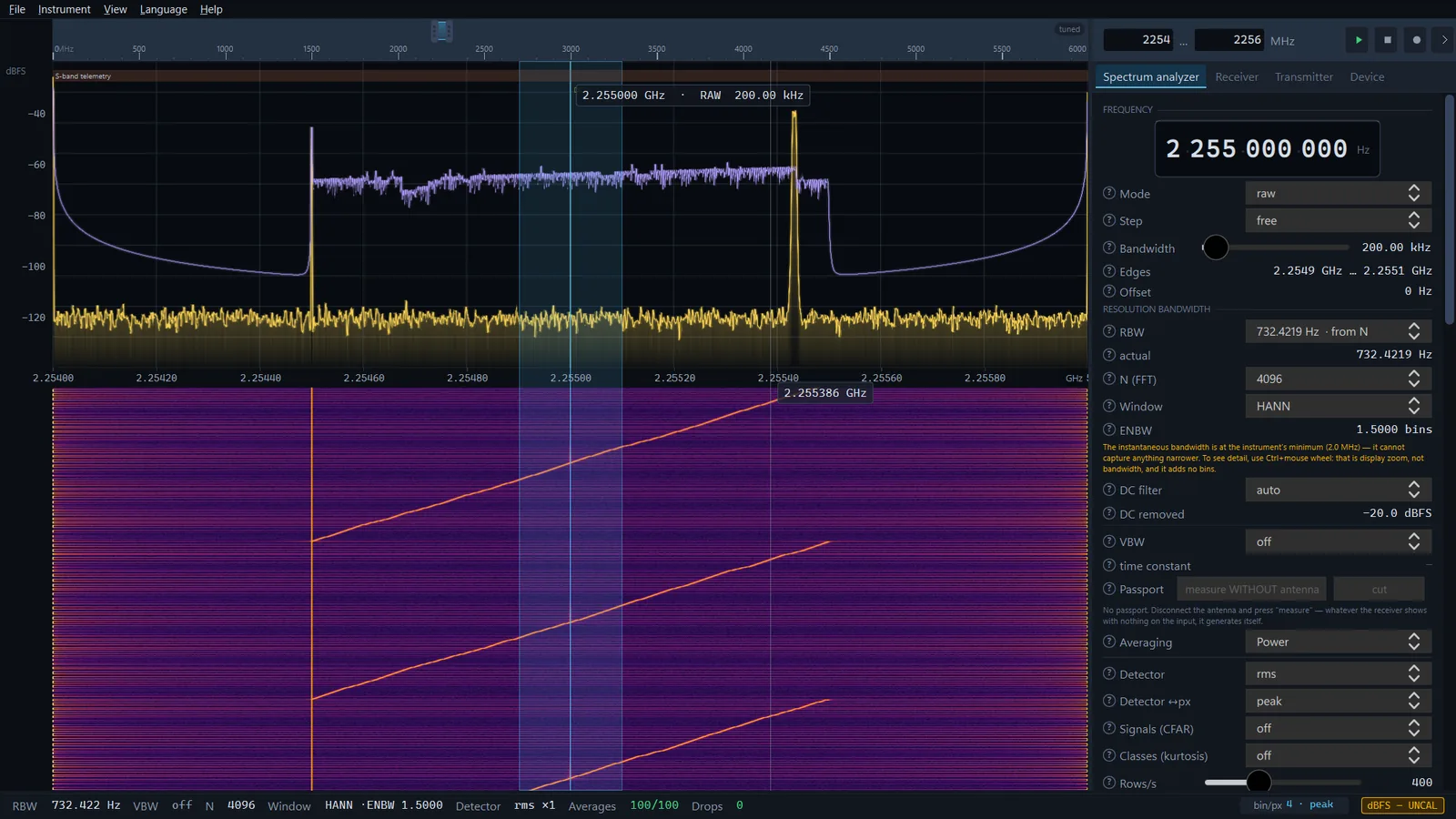
- on the left — the frequency overview ruler, the spectrum below it and the waterfall further down;
- on the right — the side panel with the tabs Spectrum analyzer, Receiver, Transmitter and Device (in SDR SA PRO with a valid key also Scanner PRO); its header holds the range fields in MHz and the ▶ ⏹ ⏺ buttons;
- at the bottom — the trust bar: the RBW, VBW, N, window, detector and losses behind the picture.
Reception starts at once. For a HackRF One, an RTL-SDR, the demo signal and recordings the app starts with N 4096, the HANN window and the rms detector; traces T1 (Live) and T4 (Average) are on. The level scale is in auto mode 0.9.25: it fits itself so that the spectrum with its traces is fully on screen; the starting scale of fresh settings is −10…−100 dBFS 0.9.25. Every control is described on the page The main window and controls.
A first session in five steps
- Pick the source. A device, the demo signal or a recording — in the picker window at start-up.
- Set the frequency and span. The side panel header has two fields — the lower and the upper edge in MHz. Type, for example,
88and108, pressing Enter after each number. The two handles of the overview ruler above the spectrum do the same, and the mouse wheel over the spectrum narrows and widens the receive band around the frequency under the cursor. If the span fits into the device's instantaneous bandwidth, the badge on the ruler says tuned; if it is wider — SWEEP: the picture is stitched from several retunes. A HackRF One takes up to 20 MHz at once, an RTL-SDR up to 2.56 MHz, so 88–108 MHz on a dongle is already a sweep. A tinySA sweeps by itself, and these actions set the limits of its sweep. A click on the spectrum puts the receive band (VFO) there. - Read the trust bar. The bottom line of the window names the RBW, VBW, N, the window with its ENBW, the detector and the Drops counter. The dBFS — UNCAL badge is a reminder that levels from a HackRF One and an RTL-SDR are relative to the ADC full scale, not calibrated dBm; with a tinySA the badge becomes dBm — instrument 0.9.25. If Coverage appears with a percentage, the spectrum is not computed from all of the air time. In detail — on the page Trust bar and loss counters.
- Add a trace. On the Spectrum analyzer tab, in the Traces group, select the Max hold mode for T2 — it collects the highest level seen at each frequency. Trace modes and detectors are covered on the page Traces.
- Listen and record. On the Receiver tab, in the Frequency group, choose the Mode (
wfmfor broadcast FM), click the signal on the spectrum and press Listen. IQ recording is started by the ⏺ button in the side panel header or by Record on the Device tab; the files land inC:\sdrsa-rec. The ⏹ button stops both the recording and the stream, ▶ resumes reception.
There is no audio during a sweep: the receiver keeps retuning, so no single frequency can be listened to. Select a span narrower than the device's instantaneous bandwidth and the audio appears. A tinySA gives neither audio nor IQ recording: the instrument returns levels, not samples.
Interface language
On the first start the app takes the Windows display language: a Ukrainian system gives the Ukrainian interface, any other gives English. The language is changed in the Language menu, which lists Українська and English: the switch takes effect at once, without a restart, and the choice is remembered. Dialogs that are already open and messages that are already shown keep the old language.
Limits
- The source is chosen at start-up. The menu item File → Open recording… in the main window does not switch the source: after a file is chosen the app says Not implemented. To open another recording or another device, restart the app.
- Levels from a HackRF One and an RTL-SDR are in dBFS, not in calibrated dBm; only a tinySA gives dBm, and the instrument calibrates them itself.
- The device's frequency, sample rate and gains are not saved between launches.
- The recording folder
C:\sdrsa-reccannot be changed. - RTL-SDR is tested with the R820T2 tuner; R828D / RTL-SDR Blog V4, direct sampling below 28.8 MHz and the bias tee are implemented but untested on hardware. tinySA is tested on a tinySA Ultra; the original tinySA has not been tested on hardware.